The holidays are a welcome chance to rest, yet for many private practice owners, they can also bring a wave of last-minute admin tasks. Whether you're stepping away for a couple of days or closing your practice for a longer break, a little preparation now can make your time off truly restorative.
With the right plan, you can disconnect confidently, knowing your practice will reopen smoothly in January without surprise client messages, scheduling mix-ups, or unpaid invoices waiting for you.
Preparing your holiday closure in Practice Better helps you:
In this guide, you'll learn simple, practical steps like updating your availability, scheduling client communications, enabling payment automations, exporting key year-end reports to prepare for tax season, and setting up a quick workflow to request Google reviews. Together, these small but essential actions create a smooth transition into the new year for both you and your clients.
Disclaimer: This article provides general guidance and does not constitute legal, financial, or tax advice. Please consult a qualified professional for advice specific to your situation.
Start by confirming which days you'll be closed. Update your Google Business Profile with holiday hours so clients see accurate information when they search for you.
How to do it in Practice Better: Go to My Schedule > My Calendar. Click the Fast Action Button and select Add an event. Create a custom block for your closure dates. If you manage a team, invite Team members to ensure everyone's schedules reflect the same closure period. See how to block time in your calendar.
Clients often book ahead during the holidays. Open your January calendar now so clients can secure spots before your break, and adjust your booking windows (how far in advance clients can book). Filling January slots before you close helps you hit the ground running and prevents a revenue dip.
How to do it in Practice Better: Go to Settings > All Settings & Preferences > Booking Restrictions. Under the setting Allow clients to book…, choose Any time in the future to ensure clients can book far in advance and into the new year. Adjust your global booking restrictions or adjust booking restrictions by service.
Write your closure announcement email, booking page banner, and auto-reply messages now. You'll refine and send them closer to the date, but drafting early reduces last-minute stress.
Include:
Get ahead of tax season by reviewing your income and payment data in Practice Better now. Review income, payment processor payouts, and outstanding invoices. Reconcile any discrepancies and note any transactions that need clarification for your accountant.
How to do it in Practice Better: Go to My Practice > Reports. Run a Payment History report to view all payments made during the year. Filter by date range and export to CSV or Excel. Run a Transaction Statement report to see payments, refunds, and write-offs. Cross-reference with your bank statements and payment processor records. Note any transactions that need clarification for your accountant. Learn how to run financial reports.
Year-end is a good time to capture positive feedback while your work is fresh in clients' minds. A well-timed review request can boost your online reputation and attract new clients in the new year.
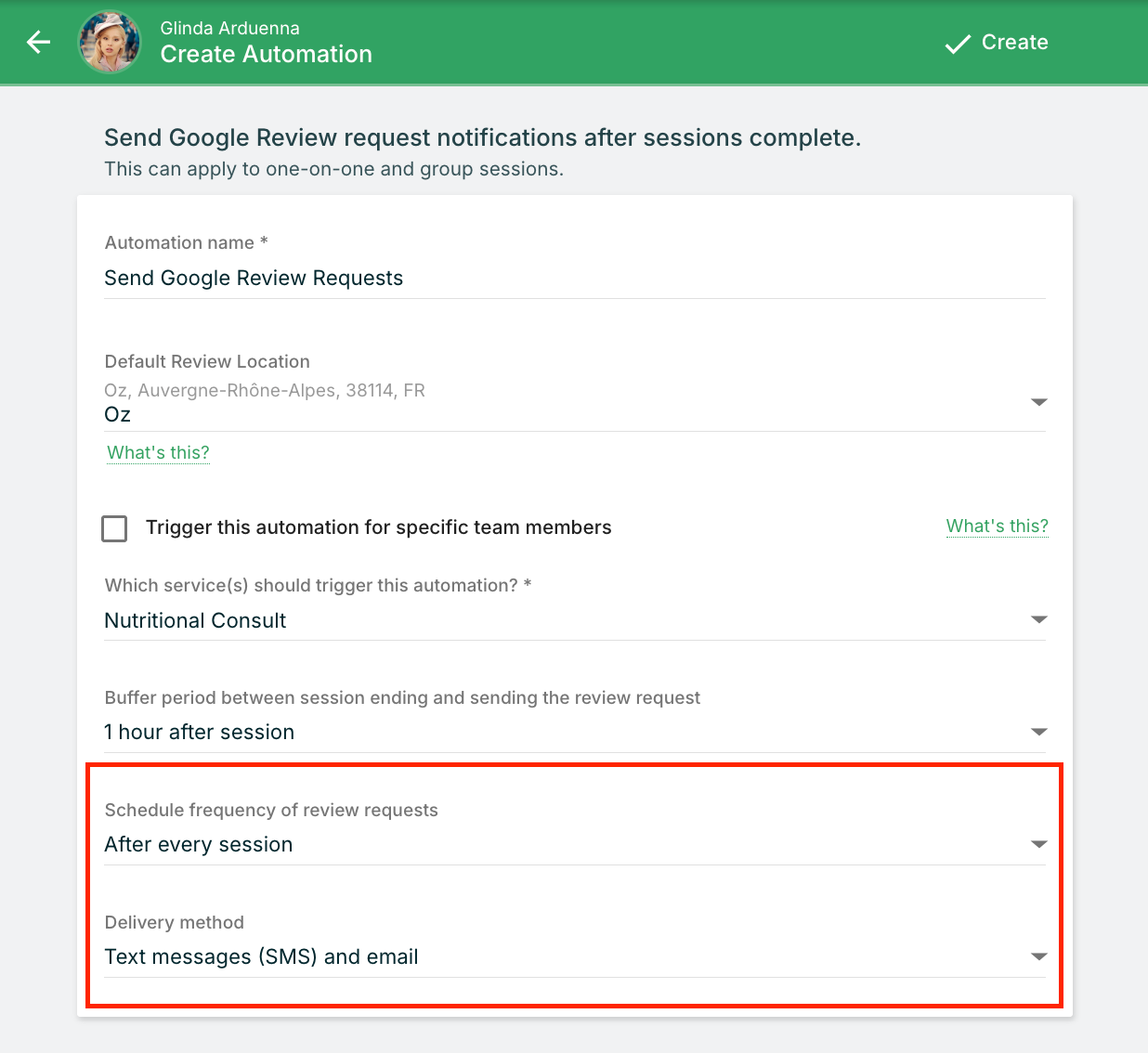
How to do it in Practice Better: Go to My Practice > Automations. Click the Fast Action Button and select Send Google review requests for client sessions. Name your automation and select your location. Choose when to send the request (immediately after a session or after a specific number of days). Set the frequency (after every session or once per month). Choose whether to send via email, SMS, or both. Click Create to save. Set up your review automation.
Compliance note: Always follow professional regulations regarding client testimonials and reviews. The ability to request Google reviews may vary depending on your professional regulatory body. Consult your specific regulator's guidelines, as certain disciplines have restrictions on soliciting client testimonials.
Check for outstanding balances and send reminders. Clients may forget about pending payments, and you don't want to chase invoices during your break.
How to do it in Practice Better: Go to My Practice > Reports and run an Accounts Receivable Invoices report to view all outstanding invoices. View your outstanding invoices.
To automate invoice reminders, go to Settings > Invoices & Payments and enable Invoice Reminders. Set the cadence (1 day to 8 weeks after the invoice is sent) and add up to three reminders. Set up automated invoice reminders.
If you're using Practice Better Payments, confirm your bank connection is active and understand the payout schedule. Payment processors often experience delays during bank holidays, so plan for funds to arrive a few days later than usual.
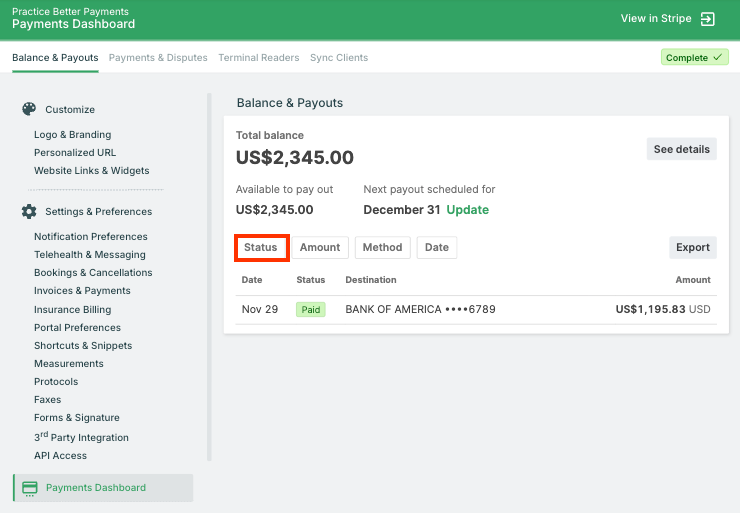
How to do it in Practice Better: Go to Settings > Payments Dashboard and review your payout frequency (automatic daily, weekly, or monthly, or manual). Check the status of recent payouts in the Balance & Payouts tab. If you rely on specific funds for expenses, factor in a 3-5 business day buffer around the holidays. Check your payout settings.
Add a closure notice to your website booking widget, social media bios, and email signature. Consistency across channels prevents client confusion.
Send a reminder to clients with upcoming sessions to confirm they're aware of your closure. Share any emergency protocols or coverage arrangements if you provide ongoing care.
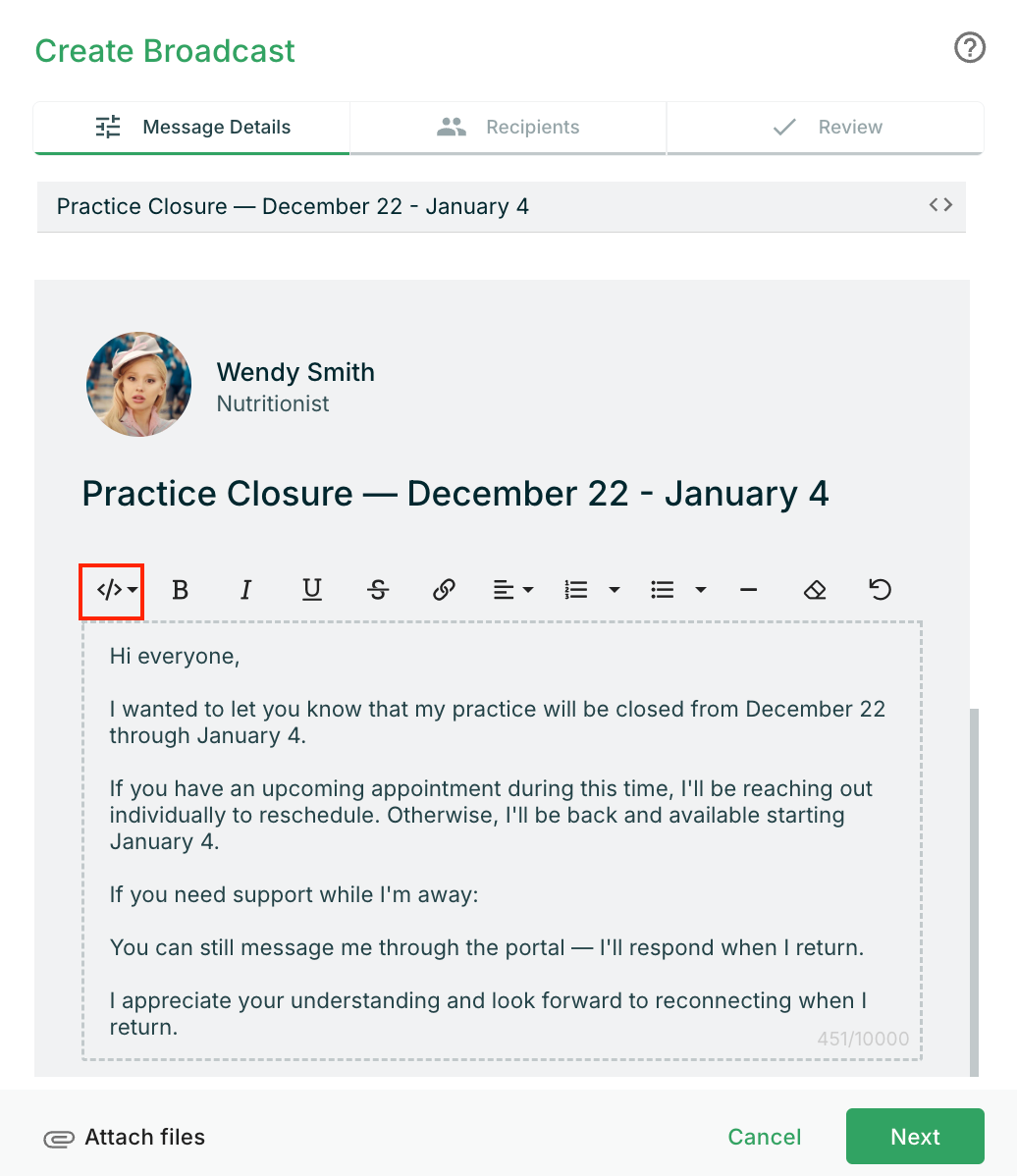
How to do it in Practice Better: Go to Messages. Click the Fast Action Button and select New broadcast. Choose your delivery method (direct chat message, email, or both). Write your closure reminder message and select the Placeholder button (<> in the Message box) to personalize it with your contact's name. Select recipients individually or filter by tags. You can send immediately or schedule for a specific date. Available on Plus and Team plans. Send your closure reminder with Broadcast Messages.
Review your active automations (welcome sequences, follow-up reminders, nurture campaigns). Pause any that shouldn't run during your break, or adjust timing so they resume when you return.
How to do it in Practice Better: Go to My Practice > Automations and review each active automation. Click the More Options button (3 dots) and select Disable. For date-sensitive sequences, update trigger conditions or delays to resume on your reopening date. Manage your automations.
Pull your final income and transaction reports for the year. Even if you'll finalize numbers later, having these reports ready helps you stay organized when tax season arrives.
How to do it in Practice Better: Go to My Practice > Reports. Export these reports:
Set the date range to the full year and click the Download button to export the data to CSV or Excel. Save these in a dedicated folder for your accountant. Download your year-end reports.
If you use Practice Better Payments (powered by Stripe) or Square to process payments, you may receive a 1099-K form directly from your payment processor. Consult your tax professional about reporting requirements. Learn about 1099-K forms.
Enable an out-of-office notification so clients know you're away and when you'll respond. Set expectations for urgent matters.
How to do it in Practice Better: Go to My Schedule > Out-of-Office Notification. Select the Enable out-of-office notification checkbox. Set the start and end dates for your closure period. Add an optional message with your return date and alternative contact info if necessary. Click Done, then click Save Changes. You can add up to 5 out-of-office periods. Enable your out-of-office notification.
Set up a chat autoresponder
Clients may message you during your closure. An autoresponder lets them know you're away and when you'll be back, preventing confusion and managing expectations.
How to do it in Practice Better: Go to Settings > Telehealth & Messaging > Chat Autoresponder section. Click Edit settings and choose the weekday and time range for your autoresponder (e.g., daily between 5:30 PM and 8:30 AM). Add additional periods by clicking Add period. Your autoresponder displays once every 30 minutes when clients message you during the set period. Set up your chat autoresponder.
Do a final sweep of your calendar. Ensure all closure dates are blocked, and telehealth links are disabled for any sessions you're not holding. If you accidentally left a slot open, you'll catch it now instead of during your break.
Decide upfront how you'll handle truly urgent client needs. Will you check messages once every few days? Delegate to a colleague? Set boundaries and stick to them.
Even while you're closed, clients may book January sessions through your online scheduler. Glance at your calendar periodically to spot trends or adjust availability if a particular day fills up.
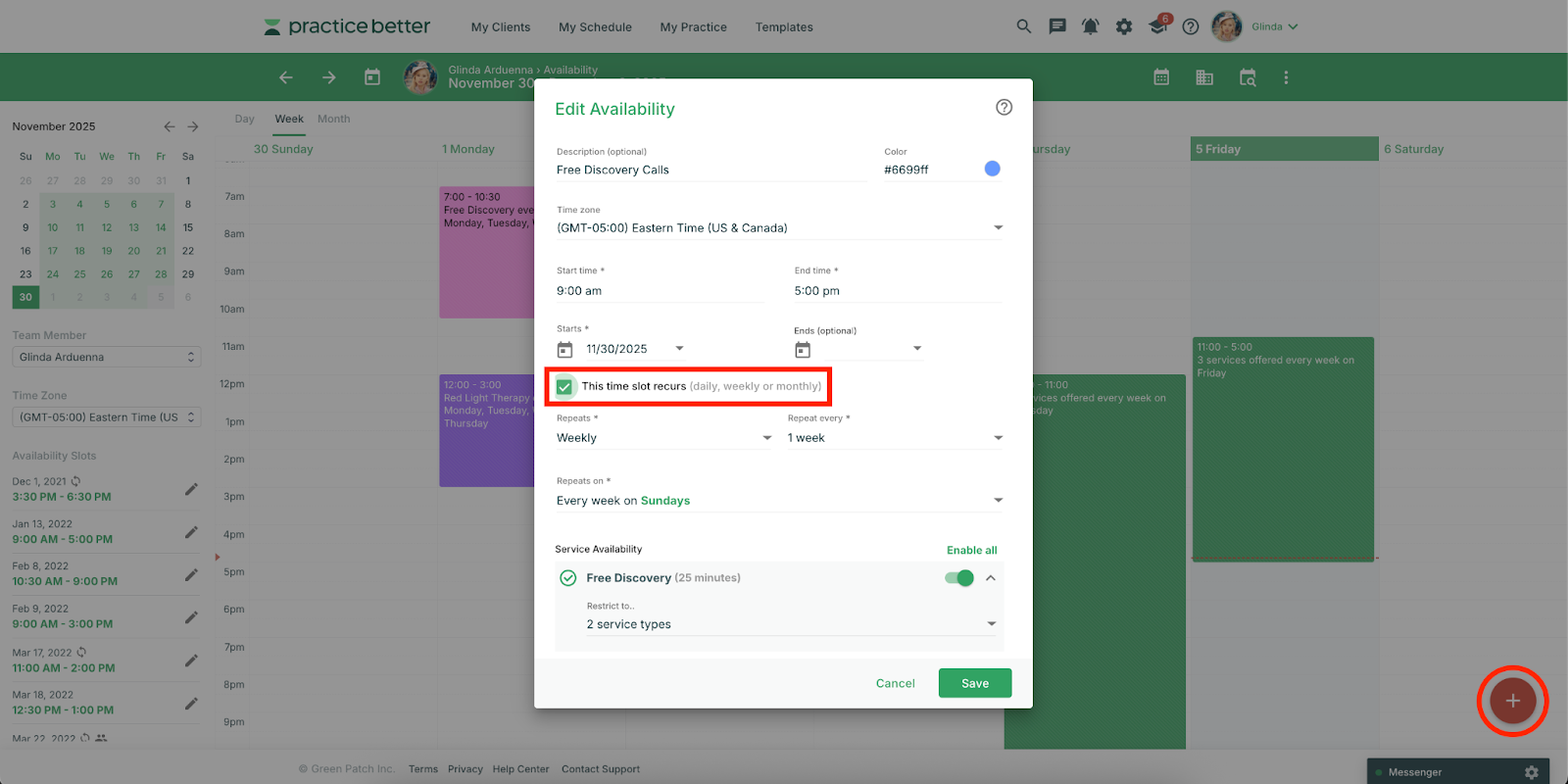
Turn your paused automations back on. Review your calendar one more time. Add buffer time or focus blocks if you need transition space before diving into client sessions.
How to do it in Practice Better: Go to My Practice > Automations. Click the More Options button (3 dots) and select Enable. Go to My Schedule > My Availability and verify that recurring availability is set. Adjust service-specific booking rules if needed (e.g., minimum advance notice). Manage your automations.
Email your client list with a warm reopening message. Include:
How to do it in Practice Better: Go to Messages. Click the Fast Action Button and select New broadcast. Choose your delivery method (direct chat message, email, or both). Write your reopening message and select the Placeholder button (<> in the Message box) to personalize it with your contact's name. Select all clients or filter by tags. Send immediately or schedule for your return date. Available on Plus and Team plans. Send your reopening announcement with Broadcast Messages.
Pull your final year-end reports and organize receipts, categorized expenses, and notes. Having everything bundled and ready helps you stay ahead when tax season arrives.
{{holiday-closure-checklist-for-your-practice}}
Pro tip: Test your booking flow before announcing your reopening to catch any gaps or overlaps.
Adjust your booking restrictions
Best practices:
Automate your Google review requests
Pro tip: Avoid all caps and excessive punctuation to prevent spam filters. Available on Plus and Team plans.
Send Broadcast Messages to multiple clients

Pro tip: You can track when clients receive an autoresponder by looking for the "A" badge next to messages on your Messages page. The autoresponder displays once every 30 minutes per client.
Pro tip: You can add up to 5 out-of-office periods. Clients will see a banner at the top of their Client Portal, and dates on your Bookings Page will be disabled during your closure.
Enable your Out-of-Office Notification
Holiday note: Expect payout delays around major bank holidays (Christmas, New Year's). Plan cash flow accordingly.
Get started with Practice Better Payments
Pro tip: On the Professional Plan and up, you can customize the Invoice Payment Reminder email template in Settings > Notification Preferences > Client Notifications.
Automate your invoice reminders
Tax note: If you use Practice Better Payments (powered by Stripe) or Square to process payments, you may receive a 1099-K form directly from your payment processor. Consult your tax professional to ensure accurate reporting.
Don't assume your regular hours will automatically populate in January. Manually review and set your January schedule, including any changes to recurring availability. Test your booking flow as a client to ensure slots appear correctly.
Mental health providers, medical professionals, and others in regulated fields may face restrictions on soliciting testimonials. Link directly to your Google Business Profile review page rather than asking for specific feedback, and check your professional board's guidelines.
Payment processor records don't always match calendar-year income. A payment made on December 30 may not be reflected in your bank account until January 2. Reconcile your payouts with your accounting software and clearly label reimbursements, refunds, and personal expenses to stay organized for tax season.
Send your closure announcement at least 2-3 weeks in advance. Follow up with a reminder email one week out and a final "we're closed" message on your last day. Clients appreciate the heads-up and are more likely to book January sessions proactively.
Review every active automation before your closure. Pause anything that shouldn't run (e.g., a welcome series for a program that's not enrolling). Double-check that your review request automation excludes sensitive services and includes the correct timing delay.
Closing your practice for the holidays doesn't have to be stressful. With a clear holiday closure checklist, you can step away knowing your clients are informed, your finances are organized, and your January calendar is ready to go. Practice Better makes it simple to block time, automate Google review requests, process payments securely, and export the reports you need to prepare for tax season.
Start planning now, and you'll enjoy your time off with confidence—no scrambling, no surprises.
Ready to streamline your holiday closure? Start your Practice Better free trial to explore Calendar, Automations, Payments, and Reports.
Already a user? Learn more about Practice Better Payments and set up your first automation today.
{{free-trial-simple-text}}
.jpg)
The holidays are a welcome chance to rest, yet for many private practice owners, they can also bring a wave of last-minute admin tasks. Whether you're stepping away for a couple of days or closing your practice for a longer break, a little preparation now can make your time off truly restorative.
With the right plan, you can disconnect confidently, knowing your practice will reopen smoothly in January without surprise client messages, scheduling mix-ups, or unpaid invoices waiting for you.
Preparing your holiday closure in Practice Better helps you:
In this guide, you'll learn simple, practical steps like updating your availability, scheduling client communications, enabling payment automations, exporting key year-end reports to prepare for tax season, and setting up a quick workflow to request Google reviews. Together, these small but essential actions create a smooth transition into the new year for both you and your clients.
Disclaimer: This article provides general guidance and does not constitute legal, financial, or tax advice. Please consult a qualified professional for advice specific to your situation.
Start by confirming which days you'll be closed. Update your Google Business Profile with holiday hours so clients see accurate information when they search for you.
How to do it in Practice Better: Go to My Schedule > My Calendar. Click the Fast Action Button and select Add an event. Create a custom block for your closure dates. If you manage a team, invite Team members to ensure everyone's schedules reflect the same closure period. See how to block time in your calendar.
Clients often book ahead during the holidays. Open your January calendar now so clients can secure spots before your break, and adjust your booking windows (how far in advance clients can book). Filling January slots before you close helps you hit the ground running and prevents a revenue dip.
How to do it in Practice Better: Go to Settings > All Settings & Preferences > Booking Restrictions. Under the setting Allow clients to book…, choose Any time in the future to ensure clients can book far in advance and into the new year. Adjust your global booking restrictions or adjust booking restrictions by service.
Write your closure announcement email, booking page banner, and auto-reply messages now. You'll refine and send them closer to the date, but drafting early reduces last-minute stress.
Include:
Get ahead of tax season by reviewing your income and payment data in Practice Better now. Review income, payment processor payouts, and outstanding invoices. Reconcile any discrepancies and note any transactions that need clarification for your accountant.
How to do it in Practice Better: Go to My Practice > Reports. Run a Payment History report to view all payments made during the year. Filter by date range and export to CSV or Excel. Run a Transaction Statement report to see payments, refunds, and write-offs. Cross-reference with your bank statements and payment processor records. Note any transactions that need clarification for your accountant. Learn how to run financial reports.
Year-end is a good time to capture positive feedback while your work is fresh in clients' minds. A well-timed review request can boost your online reputation and attract new clients in the new year.
How to do it in Practice Better: Go to My Practice > Automations. Click the Fast Action Button and select Send Google review requests for client sessions. Name your automation and select your location. Choose when to send the request (immediately after a session or after a specific number of days). Set the frequency (after every session or once per month). Choose whether to send via email, SMS, or both. Click Create to save. Set up your review automation.
Compliance note: Always follow professional regulations regarding client testimonials and reviews. The ability to request Google reviews may vary depending on your professional regulatory body. Consult your specific regulator's guidelines, as certain disciplines have restrictions on soliciting client testimonials.
Check for outstanding balances and send reminders. Clients may forget about pending payments, and you don't want to chase invoices during your break.
How to do it in Practice Better: Go to My Practice > Reports and run an Accounts Receivable Invoices report to view all outstanding invoices. View your outstanding invoices.
To automate invoice reminders, go to Settings > Invoices & Payments and enable Invoice Reminders. Set the cadence (1 day to 8 weeks after the invoice is sent) and add up to three reminders. Set up automated invoice reminders.
If you're using Practice Better Payments, confirm your bank connection is active and understand the payout schedule. Payment processors often experience delays during bank holidays, so plan for funds to arrive a few days later than usual.
How to do it in Practice Better: Go to Settings > Payments Dashboard and review your payout frequency (automatic daily, weekly, or monthly, or manual). Check the status of recent payouts in the Balance & Payouts tab. If you rely on specific funds for expenses, factor in a 3-5 business day buffer around the holidays. Check your payout settings.
Add a closure notice to your website booking widget, social media bios, and email signature. Consistency across channels prevents client confusion.
Send a reminder to clients with upcoming sessions to confirm they're aware of your closure. Share any emergency protocols or coverage arrangements if you provide ongoing care.
How to do it in Practice Better: Go to Messages. Click the Fast Action Button and select New broadcast. Choose your delivery method (direct chat message, email, or both). Write your closure reminder message and select the Placeholder button (<> in the Message box) to personalize it with your contact's name. Select recipients individually or filter by tags. You can send immediately or schedule for a specific date. Available on Plus and Team plans. Send your closure reminder with Broadcast Messages.
Review your active automations (welcome sequences, follow-up reminders, nurture campaigns). Pause any that shouldn't run during your break, or adjust timing so they resume when you return.
How to do it in Practice Better: Go to My Practice > Automations and review each active automation. Click the More Options button (3 dots) and select Disable. For date-sensitive sequences, update trigger conditions or delays to resume on your reopening date. Manage your automations.
Pull your final income and transaction reports for the year. Even if you'll finalize numbers later, having these reports ready helps you stay organized when tax season arrives.
How to do it in Practice Better: Go to My Practice > Reports. Export these reports:
Set the date range to the full year and click the Download button to export the data to CSV or Excel. Save these in a dedicated folder for your accountant. Download your year-end reports.
If you use Practice Better Payments (powered by Stripe) or Square to process payments, you may receive a 1099-K form directly from your payment processor. Consult your tax professional about reporting requirements. Learn about 1099-K forms.
Enable an out-of-office notification so clients know you're away and when you'll respond. Set expectations for urgent matters.
How to do it in Practice Better: Go to My Schedule > Out-of-Office Notification. Select the Enable out-of-office notification checkbox. Set the start and end dates for your closure period. Add an optional message with your return date and alternative contact info if necessary. Click Done, then click Save Changes. You can add up to 5 out-of-office periods. Enable your out-of-office notification.
Set up a chat autoresponder
Clients may message you during your closure. An autoresponder lets them know you're away and when you'll be back, preventing confusion and managing expectations.
How to do it in Practice Better: Go to Settings > Telehealth & Messaging > Chat Autoresponder section. Click Edit settings and choose the weekday and time range for your autoresponder (e.g., daily between 5:30 PM and 8:30 AM). Add additional periods by clicking Add period. Your autoresponder displays once every 30 minutes when clients message you during the set period. Set up your chat autoresponder.
Do a final sweep of your calendar. Ensure all closure dates are blocked, and telehealth links are disabled for any sessions you're not holding. If you accidentally left a slot open, you'll catch it now instead of during your break.
Decide upfront how you'll handle truly urgent client needs. Will you check messages once every few days? Delegate to a colleague? Set boundaries and stick to them.
Even while you're closed, clients may book January sessions through your online scheduler. Glance at your calendar periodically to spot trends or adjust availability if a particular day fills up.
Turn your paused automations back on. Review your calendar one more time. Add buffer time or focus blocks if you need transition space before diving into client sessions.
How to do it in Practice Better: Go to My Practice > Automations. Click the More Options button (3 dots) and select Enable. Go to My Schedule > My Availability and verify that recurring availability is set. Adjust service-specific booking rules if needed (e.g., minimum advance notice). Manage your automations.
Email your client list with a warm reopening message. Include:
How to do it in Practice Better: Go to Messages. Click the Fast Action Button and select New broadcast. Choose your delivery method (direct chat message, email, or both). Write your reopening message and select the Placeholder button (<> in the Message box) to personalize it with your contact's name. Select all clients or filter by tags. Send immediately or schedule for your return date. Available on Plus and Team plans. Send your reopening announcement with Broadcast Messages.
Pull your final year-end reports and organize receipts, categorized expenses, and notes. Having everything bundled and ready helps you stay ahead when tax season arrives.
{{holiday-closure-checklist-for-your-practice}}
Pro tip: Test your booking flow before announcing your reopening to catch any gaps or overlaps.
Adjust your booking restrictions
Best practices:
Automate your Google review requests
Pro tip: Avoid all caps and excessive punctuation to prevent spam filters. Available on Plus and Team plans.
Send Broadcast Messages to multiple clients
Pro tip: You can track when clients receive an autoresponder by looking for the "A" badge next to messages on your Messages page. The autoresponder displays once every 30 minutes per client.
Pro tip: You can add up to 5 out-of-office periods. Clients will see a banner at the top of their Client Portal, and dates on your Bookings Page will be disabled during your closure.
Enable your Out-of-Office Notification
Holiday note: Expect payout delays around major bank holidays (Christmas, New Year's). Plan cash flow accordingly.
Get started with Practice Better Payments
Pro tip: On the Professional Plan and up, you can customize the Invoice Payment Reminder email template in Settings > Notification Preferences > Client Notifications.
Automate your invoice reminders
Tax note: If you use Practice Better Payments (powered by Stripe) or Square to process payments, you may receive a 1099-K form directly from your payment processor. Consult your tax professional to ensure accurate reporting.
Don't assume your regular hours will automatically populate in January. Manually review and set your January schedule, including any changes to recurring availability. Test your booking flow as a client to ensure slots appear correctly.
Mental health providers, medical professionals, and others in regulated fields may face restrictions on soliciting testimonials. Link directly to your Google Business Profile review page rather than asking for specific feedback, and check your professional board's guidelines.
Payment processor records don't always match calendar-year income. A payment made on December 30 may not be reflected in your bank account until January 2. Reconcile your payouts with your accounting software and clearly label reimbursements, refunds, and personal expenses to stay organized for tax season.
Send your closure announcement at least 2-3 weeks in advance. Follow up with a reminder email one week out and a final "we're closed" message on your last day. Clients appreciate the heads-up and are more likely to book January sessions proactively.
Review every active automation before your closure. Pause anything that shouldn't run (e.g., a welcome series for a program that's not enrolling). Double-check that your review request automation excludes sensitive services and includes the correct timing delay.
Closing your practice for the holidays doesn't have to be stressful. With a clear holiday closure checklist, you can step away knowing your clients are informed, your finances are organized, and your January calendar is ready to go. Practice Better makes it simple to block time, automate Google review requests, process payments securely, and export the reports you need to prepare for tax season.
Start planning now, and you'll enjoy your time off with confidence—no scrambling, no surprises.
Ready to streamline your holiday closure? Start your Practice Better free trial to explore Calendar, Automations, Payments, and Reports.
Already a user? Learn more about Practice Better Payments and set up your first automation today.
{{free-trial-simple-text}}